> ## Documentation Index
> Fetch the complete documentation index at: https://docs.clairelabs.ai/llms.txt
> Use this file to discover all available pages before exploring further.
# Ask Claire: chat with a document
> Ask Claire lets you ask questions about a submission without leaving your grading view. Confirm a student's argument or find a passage instantly.
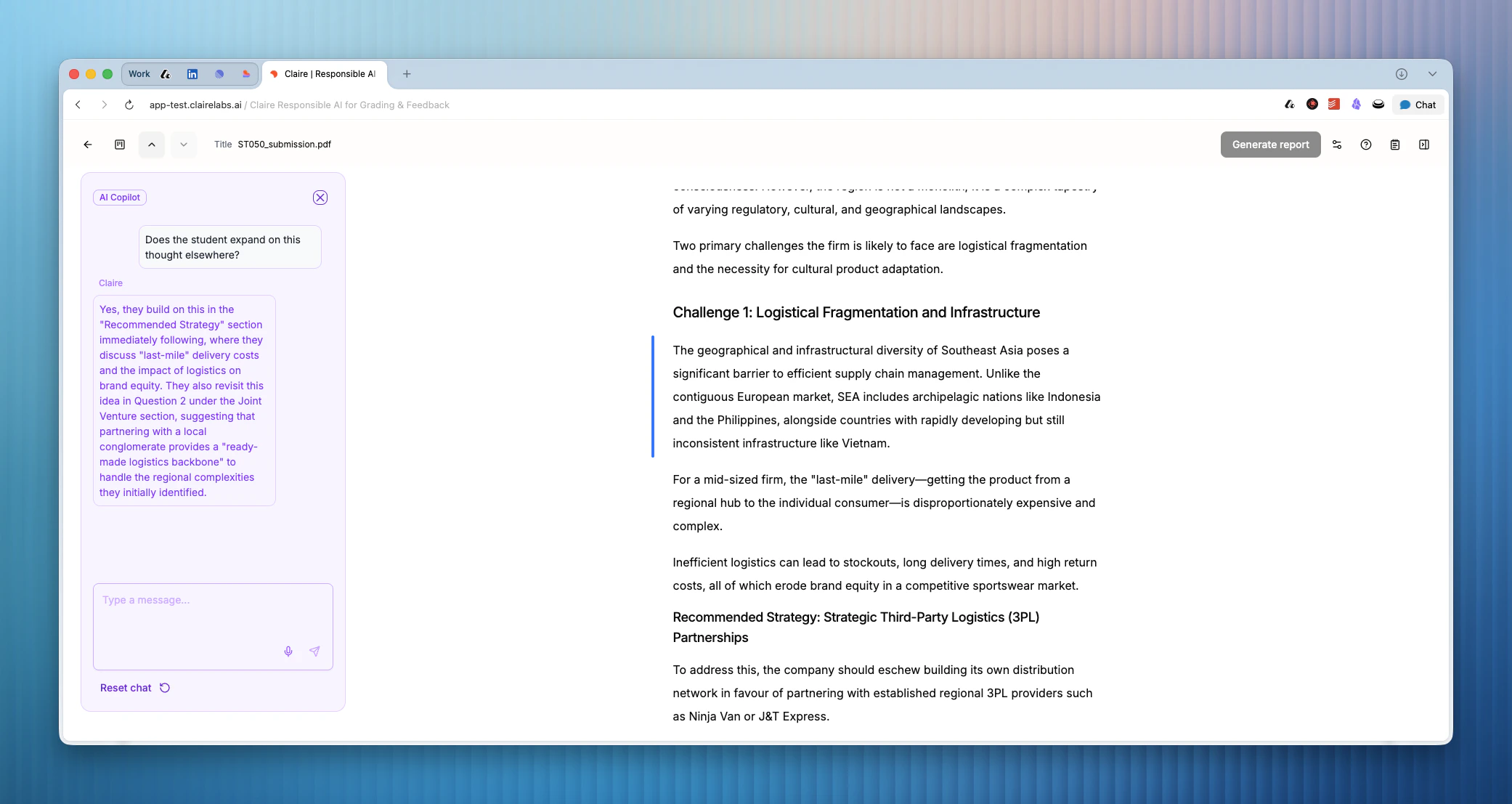
Ask Claire lets you have a conversation with the student submission you are currently reviewing. Instead of scrolling back through pages to find a passage or second-guess your interpretation, you can ask a direct question and get an answer grounded in the document. It is especially useful when you want to check consistency across a long submission or confirm your reading of a student's argument before annotating.
 ## When to use Ask Claire
* You are about to add an annotation — for example, noting that an argument lacks depth — but want to check whether the student addressed it elsewhere in the submission first.
* You remember reading an interesting point in an earlier section but can't locate it or recall it accurately.
* You are unsure whether you have interpreted a student's intentions correctly and want to verify before grading.
Ask Claire is scoped to helping you understand and analyze student submissions. It will not provide technical support on how to use the platform — for platform questions, refer to this help center or contact us directly. It will also not assign grades or make assessments on your behalf.
## Opening and using Ask Claire
Click the Ask Claire button on the left side of the screen, or press \[ on your keyboard. The chat panel opens on the left side of the screen.
Type your question naturally. Because Claire knows which Block you are currently focused on, you do not need to add extra context. For example: *"Is this mentioned elsewhere?"* or *"What does the student say about methodology in the introduction?"*
Claire is contextually aware. It knows which Block you are focused on when you send a message, so you can ask direct questions without restating where you are in the document.
Press \[ again to hide the chat panel and return to your full annotation view.
## Keyboard shortcuts
| Key | Action |
| ------------- | ------------------------------------- |
| \[ | Show / hide the Ask Claire chat panel |
**Looking for more details?**
* To learn how to add highlights and notes to a submission, see [Annotate](/documentation/reader/annotate).
* If you want to keep private notes without them appearing in student feedback, check out the [Scratchpad](/documentation/reader/scratchpad).
## When to use Ask Claire
* You are about to add an annotation — for example, noting that an argument lacks depth — but want to check whether the student addressed it elsewhere in the submission first.
* You remember reading an interesting point in an earlier section but can't locate it or recall it accurately.
* You are unsure whether you have interpreted a student's intentions correctly and want to verify before grading.
Ask Claire is scoped to helping you understand and analyze student submissions. It will not provide technical support on how to use the platform — for platform questions, refer to this help center or contact us directly. It will also not assign grades or make assessments on your behalf.
## Opening and using Ask Claire
Click the Ask Claire button on the left side of the screen, or press \[ on your keyboard. The chat panel opens on the left side of the screen.
Type your question naturally. Because Claire knows which Block you are currently focused on, you do not need to add extra context. For example: *"Is this mentioned elsewhere?"* or *"What does the student say about methodology in the introduction?"*
Claire is contextually aware. It knows which Block you are focused on when you send a message, so you can ask direct questions without restating where you are in the document.
Press \[ again to hide the chat panel and return to your full annotation view.
## Keyboard shortcuts
| Key | Action |
| ------------- | ------------------------------------- |
| \[ | Show / hide the Ask Claire chat panel |
**Looking for more details?**
* To learn how to add highlights and notes to a submission, see [Annotate](/documentation/reader/annotate).
* If you want to keep private notes without them appearing in student feedback, check out the [Scratchpad](/documentation/reader/scratchpad).