> ## Documentation Index
> Fetch the complete documentation index at: https://docs.clairelabs.ai/llms.txt
> Use this file to discover all available pages before exploring further.
# Grading remarks grouped by criterion
> Switch from Reading mode to Rubric view to manage grading remarks and AI suggestions by criterion, and trace suggestions back to their source Blocks.
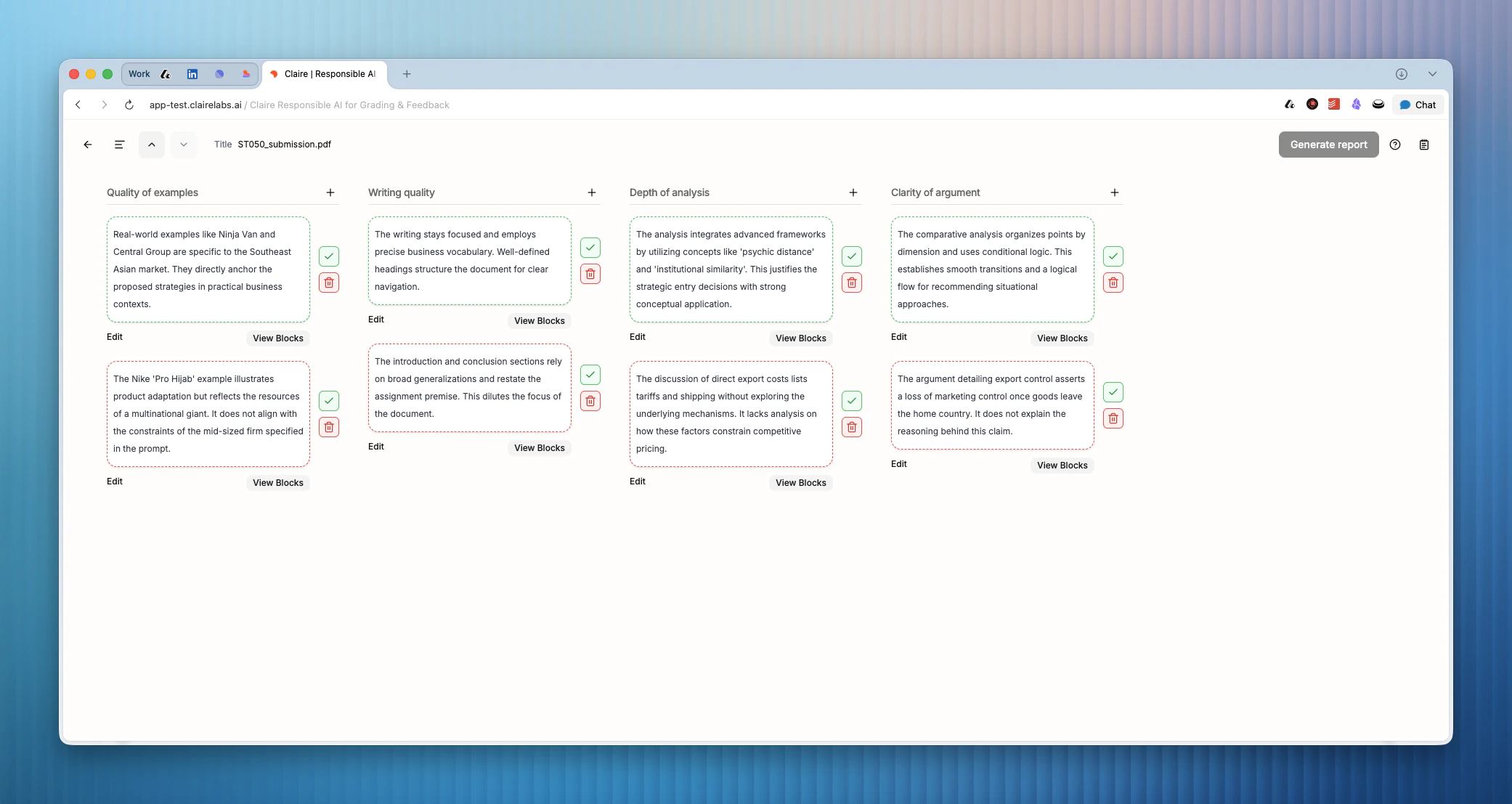
Rubric view gives you a structured, Kanban-style perspective of a submission, where each column represents a rubric criterion. Instead of reading linearly, you work directly against your grading rubric — adding remarks, approving AI suggestions, and tracing evidence back to specific Blocks in the document.
 ## Using Rubric view
Click the view icon in the top navigation bar to switch from Reading mode to Rubric view. Click the Reading mode icon to return at any time.
In Rubric view, you can add grading remarks directly to a rubric criterion via their respective column. Remarks added here appear in both the grading part and the student feedback draft.
Claire's suggestions are organized into columns under their relevant rubric criterion. Review each one and click the icon button to approve, or the icon to dismiss. Approved suggestions become part of your grading remarks.
Click View Blocks below any AI suggestion to open the [References panel](/documentation/reader/reference-panel). The panel lists every Block the suggestion is based on. Click any Block in the list to view it in its original context in Reading mode.
Use the References panel to verify the evidence behind an AI suggestion before approving it. Click any source Block in the panel to jump directly to that passage in Reading mode — then return to Rubric view to make your decision.
***
**Looking for more details?**
* To trace a suggestion back to its original context, see [Reference panel](/documentation/reader/reference-panel).
* To generate a grading and feedback report from your notes, see [Review submissions](/grading/evaluate-students).
## Using Rubric view
Click the view icon in the top navigation bar to switch from Reading mode to Rubric view. Click the Reading mode icon to return at any time.
In Rubric view, you can add grading remarks directly to a rubric criterion via their respective column. Remarks added here appear in both the grading part and the student feedback draft.
Claire's suggestions are organized into columns under their relevant rubric criterion. Review each one and click the icon button to approve, or the icon to dismiss. Approved suggestions become part of your grading remarks.
Click View Blocks below any AI suggestion to open the [References panel](/documentation/reader/reference-panel). The panel lists every Block the suggestion is based on. Click any Block in the list to view it in its original context in Reading mode.
Use the References panel to verify the evidence behind an AI suggestion before approving it. Click any source Block in the panel to jump directly to that passage in Reading mode — then return to Rubric view to make your decision.
***
**Looking for more details?**
* To trace a suggestion back to its original context, see [Reference panel](/documentation/reader/reference-panel).
* To generate a grading and feedback report from your notes, see [Review submissions](/grading/evaluate-students).